
WHFB Failing
Unable to login to Windows 10 workstation with WHFB (Forgot / Failing login methods)
Overview
The instructions below outline the steps to take in the event that you are unable to login to your Windows 10 workstation with Windows Hello for Business.
Reach out to your user / endpoint administrator
Your User or Endpoint Administrator is authorized to submit a ticket to Nimbus Logic, allowing us to temporarily remove the MFA requirement for Windows 10 login, to allow the user to login with their password. Once logged in, the user should follow the steps below to (re)configure their login methods. It is recommended to configure both biometric options when available (fingerprint / facial recognitioon) as well as PIN and a trusted bluetooth device for the second. In the event that facial recognition / fingerprint fail - PIN can be used as a primary authentication method, with security key or trusted signal (paired bluetooth device) for the second.
Windows Hello For Business - MFA
Once you have received confirmation from your administrator that you will be able to log in with your password, choose “Sign-in Options” - and then password. Once logged in to Windows 10, click on Start > Settings > Accounts > Sign-in Options.
Here you can configure an additional MFA option for your second factor in Windows Hello for Business.
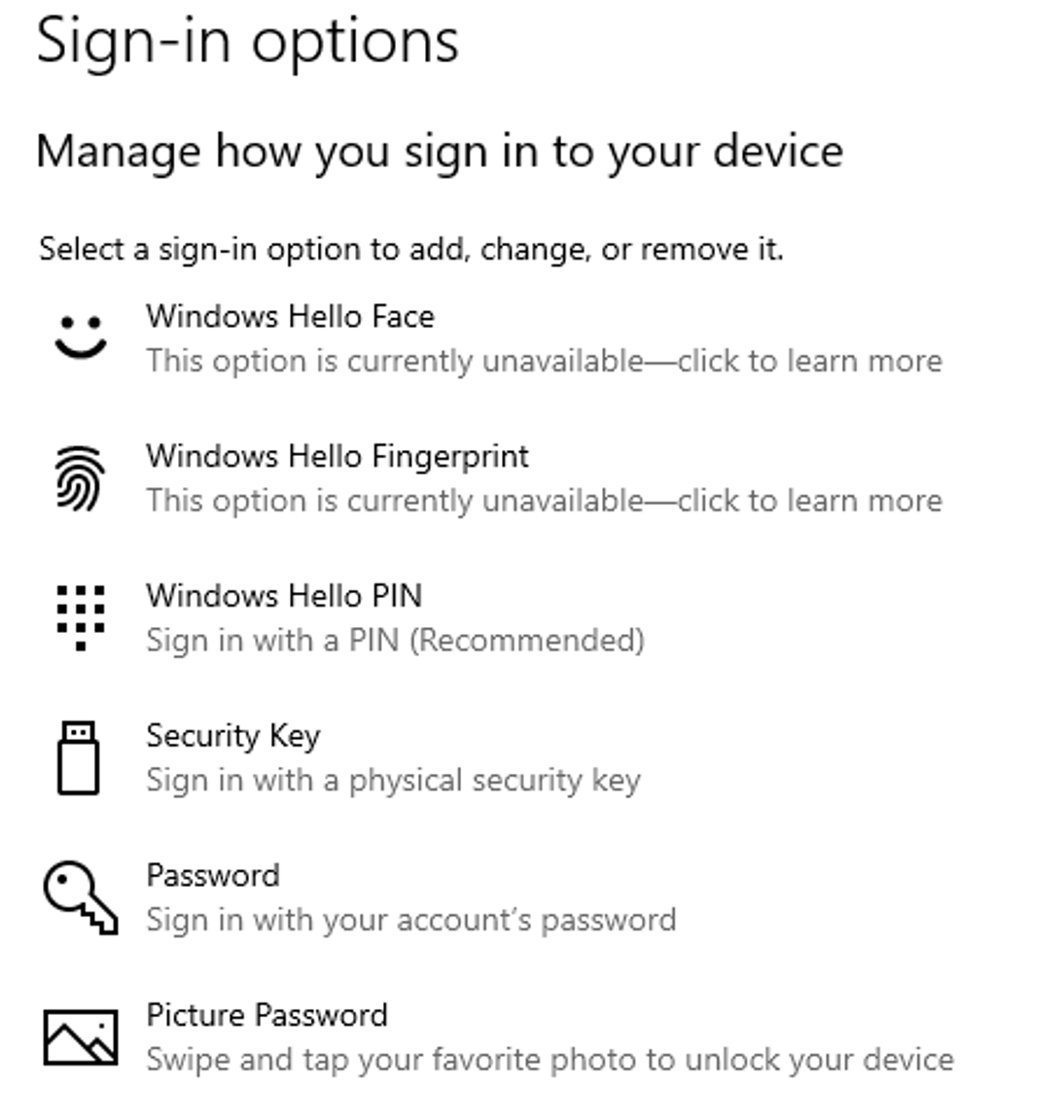
It’s also recommended to pair your smartphone with the device’s Bluetooth connection as a secondary factor of authentication.
To do this, click on Start > Settings > Devices > Add Bluetooth or other device
Important:
- It is recommended to configure both biometric options when available (fingerprint / facial recognitioon) as well as PIN and a trusted bluetooth device for the second. In the event that facial recognition / fingerprint fail - PIN can be used as a primary authentication method, with security key or trusted signal (paired bluetooth device) for the second.